Updating Admidio with the Core Updater
Since version 6.0, Admidio provides a Core Updater that installs a new Admidio release for you: it downloads the release, checks it, backs up your database, replaces the program files and updates the database. You do not have to unpack files or upload them by FTP, and if something goes wrong it can put the previous version back.
Admidio 4.x and 5.0 do not contain the updater. You add it once manually as a small package and then update directly to the latest 6.x release. You do not have to install the versions in between. Which releases are possible is listed in Which versions can be upgraded.
The update only starts when an administrator starts it. Nothing is updated in the background.
- Admidio 6.0 or later: Start the update from the preferences (with screenshots)
- Admidio 4.x or 5.0: Manually install the updater and call it
Which versions can be upgraded
| Installed version | Upgrade to 6.x |
|---|---|
| 6.0 and later | Directly with the button in the preferences |
| 4.0 to 4.3.x, 5.0.x | Yes, with the updater package. Tested with 4.3.17, 5.0.0 and 5.0.17; the older 4.x releases have the same file layout, but have not been tried. Make a complete backup first. |
| 3.x and older | Not with the updater. First update by hand to the latest 4.3 release (follow the instructions of the Admidio documentation for that version), then continue here. |
You cannot go backwards: the updater refuses to install a version that is older than the one you have.
Performing an update from Admidio 6.0 and later
- Optional, but recommended: back up the folder
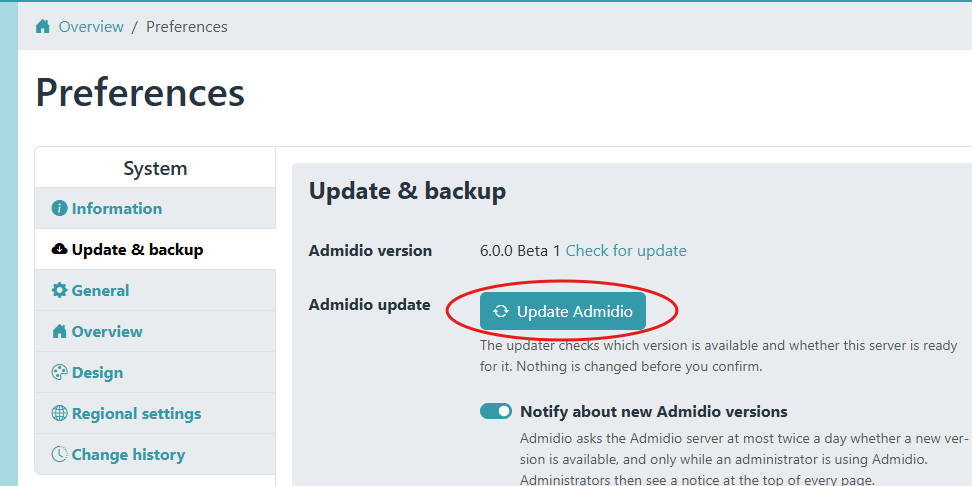
adm_my_files(see What you need). The updater never changes or deletes it, but it does not copy it either, so a backup of your uploads, photos and documents is your insurance if something goes terribly wrong. The database is backed up by the updater itself. - Open Preferences → System → Update & backup and click Update Admidio. (Admidio 4.x and 5.0 do not have this button yet: see Add the updater for Admidio 4.x and 5.0 below.)
- Developers can choose a development version instead (only with debug mode switched on, see the questions at the end). For normal installations, only the stable version is offered.
- Wait until the page says “Admidio has been updated to version …”.
If there are any warnings or problems, the final page will clearly indicate it (see Finish and If something goes wrong). It also shows the locations of the file and database backups.
Each step is explained in detail in The update step by step below.
Add the updater for Admidio 4.x and 5.0
Do these steps for 4.x and for 5.0 alike.
- Back up the folder
adm_my_filesand the database (recommended, see Before you start). Make sure your server runs PHP 8.2 or newer (see What you need; ask your hosting provider; the latest 4.3 release was tested with PHP 8.3). - Download the updater package
admidio-core-updater-X.Y.Z.zipof the latest release from the download page. It is small and only contains the folderinstall/core-update. - Unpack the zip-file on your computer. You get a folder
installwith a foldercore-updateinside. - Upload the folder
installinto the main folder of your Admidio installation (the folder that containsadm_my_filesandindex.php). Keep the structure: the result must be<your Admidio folder>/install/core-update/index.php. If a folderinstallexists already (5.0), merge it. Only files insideinstall/core-updateare added; nothing is overwritten. - Make the files readable for the web server (the same permissions as your other Admidio files).
- Open the updater in your browser:
https://www.example.org/admidio/install/core-update/index.php
(replace the address with the address of your Admidio). - If you are not logged in as administrator, the page asks you to log in to Admidio as an administrator and has a Log in button for the login page of your version. After the login, open the updater address again.
- Follow the steps of the updater, described in The update step by step below.
Once Admidio 6.0 or later is installed, the updater is part of the installation and can be started from the button in the preferences.
Details about upgrading from earlier versions
- Plugins you installed yourself in the old folder
adm_pluginsare moved to the new folderplugins. If the server does not allow it, the result page shows a warning that tells you what to move by hand.- Plugins written for 4.x are mostly not compatible with 6.x: ask the author for a new version.
- New settings are added with their default values.
- Admidio 4.x keeps its program files in the folder
adm_program. The updater removes the old code as part of the update and keeps a backup copy inadm_my_files/backups/(see What the update does with your files). The old addresses such as…/adm_program/overview.phpno longer exist afterwards. Update links and bookmarks. Menu entries and the start page setting of Admidio are converted by the database update. - Your own themes in
adm_themescannot be used by the new version. The updater leaves them untouched and names them on the result page. Delete them when you no longer need them. The new standard theme isthemes/simple.
What you need
| What | Why |
|---|---|
| A backup of your own (recommended) | The updater backs up the database. It does not copy the files in adm_my_files (uploads, photos, documents), but it does not change or delete them either. Copy that folder yourself as insurance in case something goes terribly wrong. |
| PHP 8.2 or newer | The current 6.x release needs it. Ask your hosting provider, or switch the PHP version in your hosting panel, before you update. The updater checks it and refuses to go on otherwise. |
The PHP extensions curl, zip, openssl, json and pdo with the driver of your database | The updater downloads the release with curl, unpacks it with zip and verifies it with openssl. |
| Write permission for the web server on all Admidio files and folders | The updater replaces the program files. If you uploaded Admidio with an FTP user that is not the web server user, the files may not be writable. The check tells you which folders. |
| Free disk space | About three times the size of the download. The check shows how much is needed and how much is free. |
| Access to the internet from the server | The updater downloads the release over HTTPS from the Admidio server. |
| An administrator account of Admidio | Only administrators can start or continue an update. |
Updating is also possible if your server has little time per request: the updater works in portions of a few seconds. Only the database update is one long step (see If something goes wrong).
Before you start
- Back up
adm_my_filesand the database (recommended). The updater never touchesadm_my_filesand makes a backup of the database itself, but a backup of your own is cheap insurance. - Choose a quiet time. During the file replacement visitors see a maintenance page. (Admidio 4.x and 5.0 before 5.0.15 do not know maintenance mode yet: there the pages stay reachable until the old files are removed at the end of the file replacement. Update when nobody works in Admidio.)
- Finish pending updates. If you updated the files earlier but never finished the database update (
install/update.php), do that first (see Check requirements). The updater tells you if this is the case. - Check your plugins and themes. The plugins that come with Admidio are updated with it. Plugins and themes that you installed yourself must be available for the new version: ask their authors. Modified core files are replaced (see What the update does with your files): note your changes down or keep a copy.
- Open the updater in a normal browser window, not in a private tab that closes by itself, and keep it open until it is finished.
The update step by step
Notice that an update exists
Admidio looks for a new release at most twice a day, but only while an administrator is using Admidio. If there is one, administrators see a notice above the content of every page:
Admidio 6.1.0 is available. Update Admidio
You can close the notice; it comes back when there is a newer version. In Preferences → System → Update & backup you can switch the check off (“Notify about new Admidio versions”).
You can also check by hand: Preferences → System → Information or Update & backup, click Check for update. If an update is available, a button Update Admidio appears next to the result.
Start the update
Click Update Admidio (see Notice that an update exists). The updater opens on a page of its own. On the left you see the steps of the update:
- Check requirements
- Download update
- Unpack and compare files
- Review changes
- Back up database
- Replace files
- Update database
- Finish
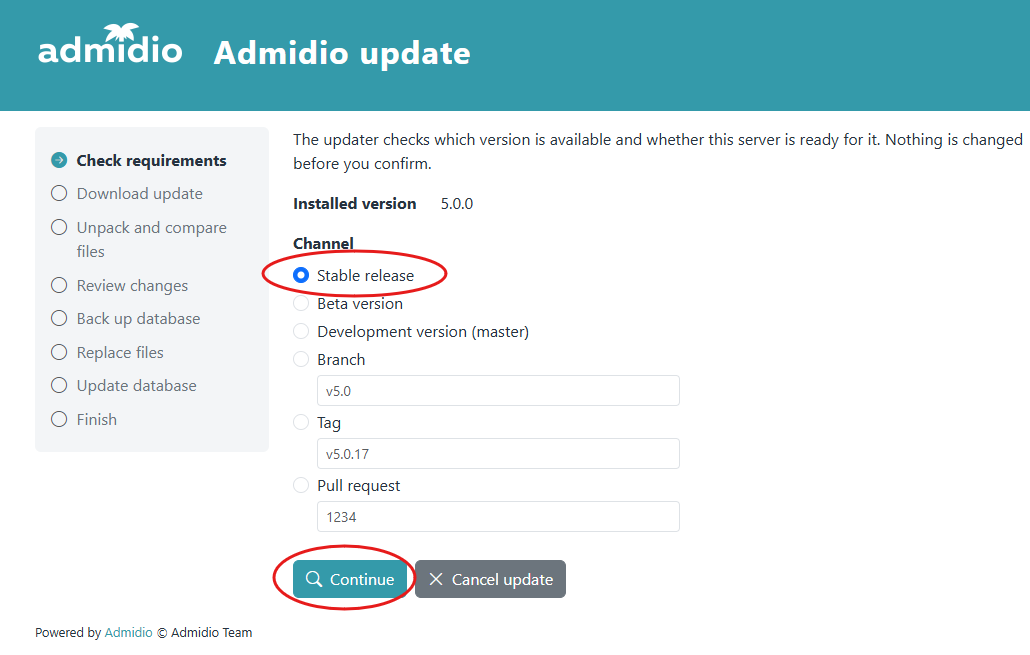
Developers can choose a development version instead of the stable one (only with debug mode switched on, see the questions at the end). For normal installations, only the stable version is offered.
Check requirements
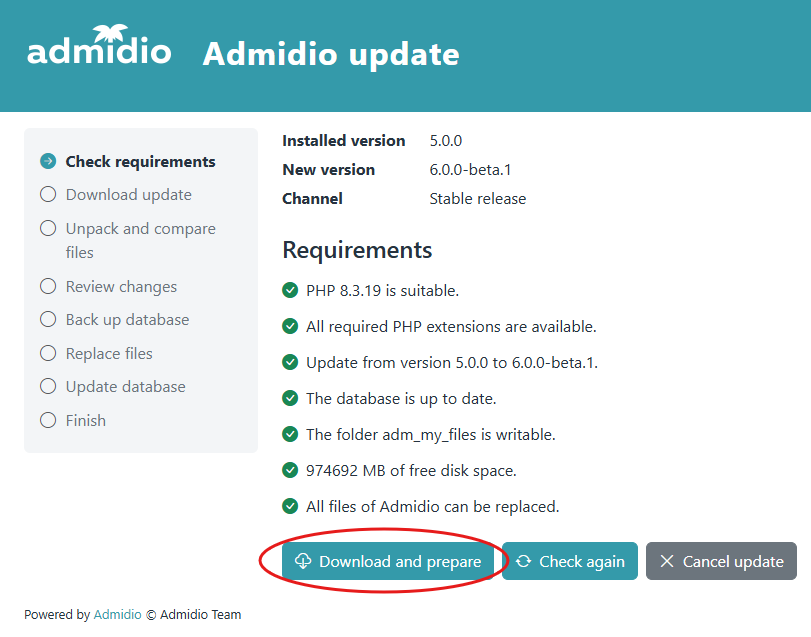
The updater checks the new version and your server. Every line is either green (ok) or tells you what is missing. Typical messages:
| Message | What to do |
|---|---|
| “Version X needs at least PHP 8.2, but the server runs PHP Y.” | Switch the PHP version of your hosting to 8.2 or newer, then click Check again. |
| “These PHP extensions are missing: …” | Enable them in your hosting panel or ask your provider. |
| “The web server cannot replace files in: …” | Fix the file permissions of the folders named there (the web server user must be allowed to write), then Check again. |
| “The update needs about N MB of free disk space …” | Free some space, then Check again. |
| “The database has version X, the files have version Y. Complete the database update (install/update.php) first.” | Open install/update.php in your Admidio folder and finish that update first. |
| “Version X needs at least Admidio Y, but Z is installed. Update to Y first.” | Update to the version named there first, then run the updater again. |
| “The folder adm_my_files can be reached from the internet …” | Protect adm_my_files in the configuration of your web server. The update keeps copies of your database and files there. With Apache, Admidio creates an .htaccess file; with nginx you need a rule of your own. This is a warning, not an error. |
Errors (red) stop the update; warnings (yellow) do not. If all is well, click Download and prepare. Nothing has been changed on your site so far, and Cancel update removes everything the updater has created.
Download
The updater downloads the release in parts and shows a progress bar. It then checks that the package is the one Admidio announced: the announcement is digitally signed, the package must have the announced checksum, and every file in it is checked again. Only HTTPS is used. If a check fails, the update ends and nothing is installed.
If the download is interrupted (browser closed, connection lost), open the updater again and click Start or continue update. It continues where it stopped.
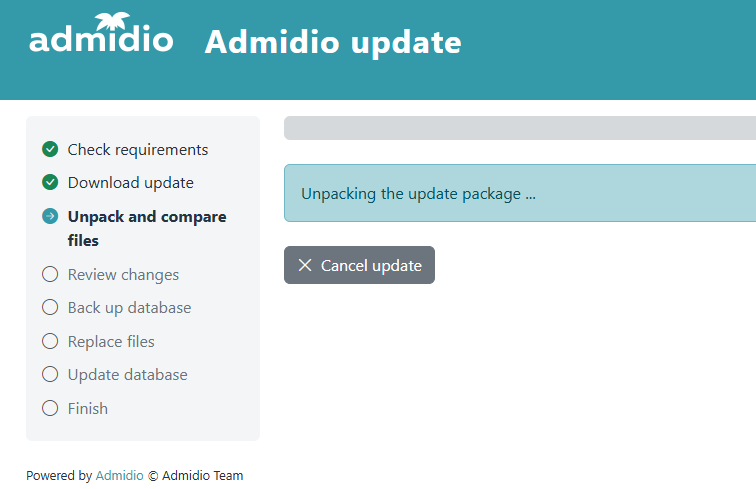
After the download the updater unpacks the release and compares its files with yours.
Review the changes
The page “Ready to update to version X” tells you what will happen:
- how many files are new, replaced, removed and already up to date,
- how many files were changed or do not belong to the installed version. They are kept in a ZIP archive (see What the update does with your files), nothing is lost,
- under Details of the changes the lists of the removed and kept files.
Then you choose the backup of your database:
- Back up the database before the update (recommended): the updater backs up the database itself.
- I have my own current backup of the database: choose this only if you really have one (and see how to protect the backups). It is the only choice if your server cannot back up the database itself (for PostgreSQL the program
pg_dumpis needed).
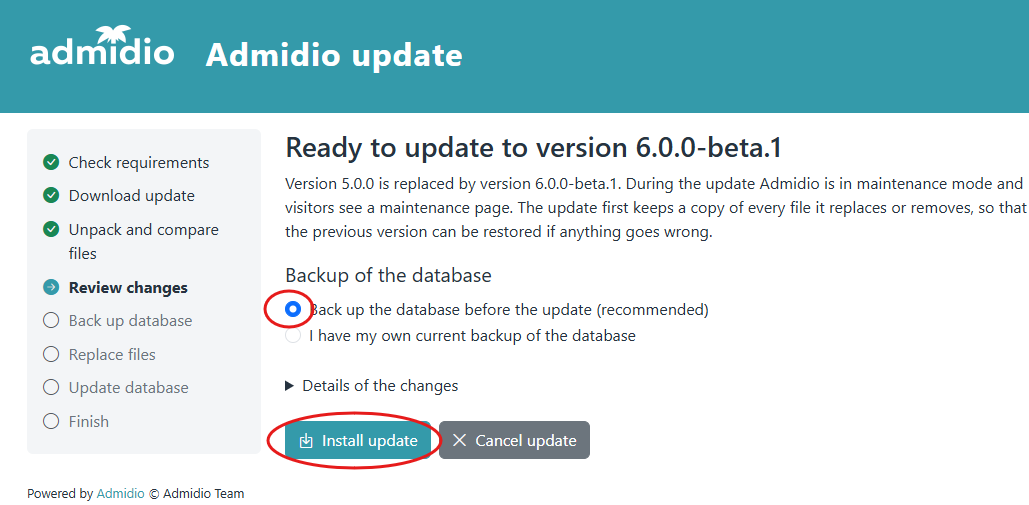
Click Install update when you are ready. From here on the site is in maintenance mode. If something fails from here on, see If something goes wrong.
What happens now
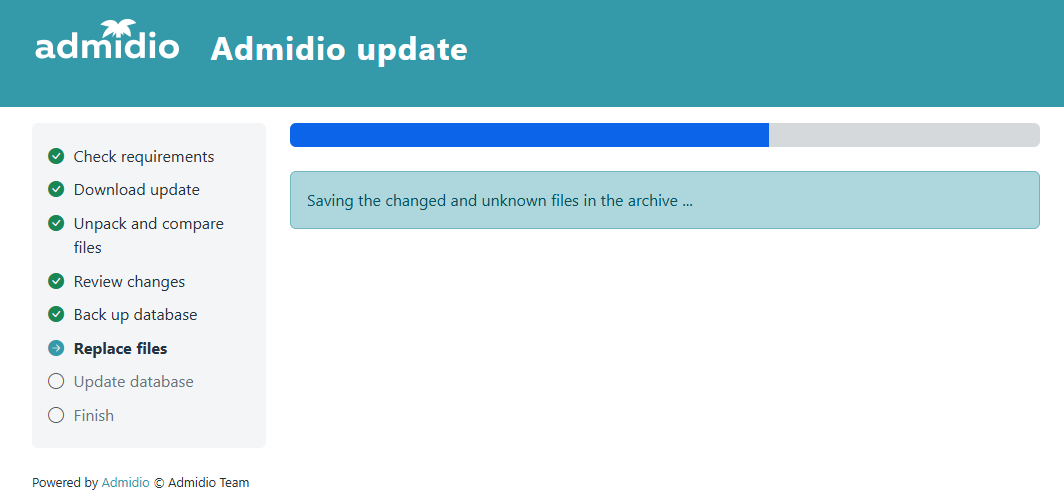
The updater runs through the remaining steps without further questions:
- Maintenance mode goes on, and the database is backed up.
- Every file that is replaced or removed is copied away first, then the new files are installed and checked again.
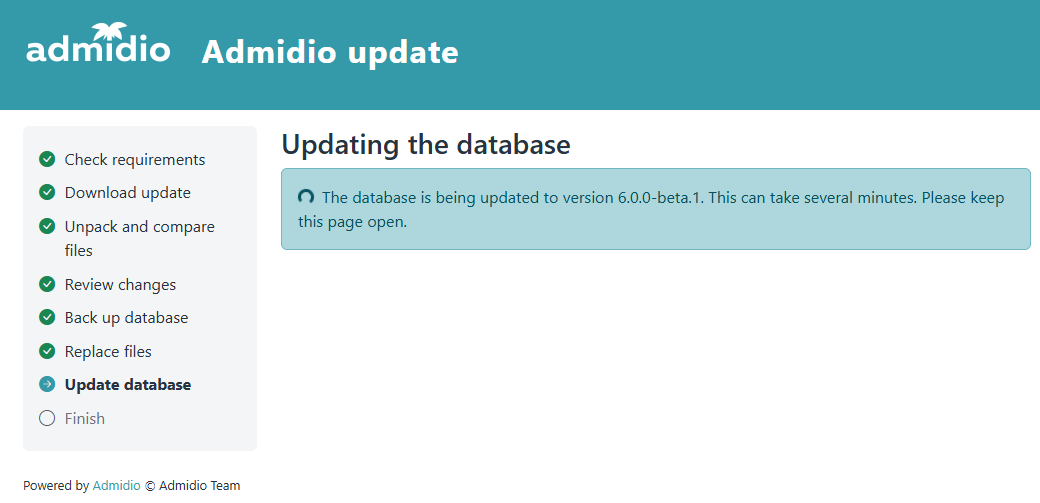
- The database is updated. This can take several minutes for a large installation. Keep the page open.
- Maintenance mode goes off.
If your server cuts off a long request, the page keeps asking the server until the database update is really finished.
Finish
The page says “Admidio has been updated to version …”. It lists
- where the backup of the database is,
- where the archive of changed and replaced files is,
- notes from the database update, for example about plugins that could not be moved.
The log of the update is saved in adm_my_files/logs/core-update_<date>_<from>_to_<to>.log.
Click Open Admidio. Try the start page, the login and one or two modules. Usually you stay logged in; if not, log in again.
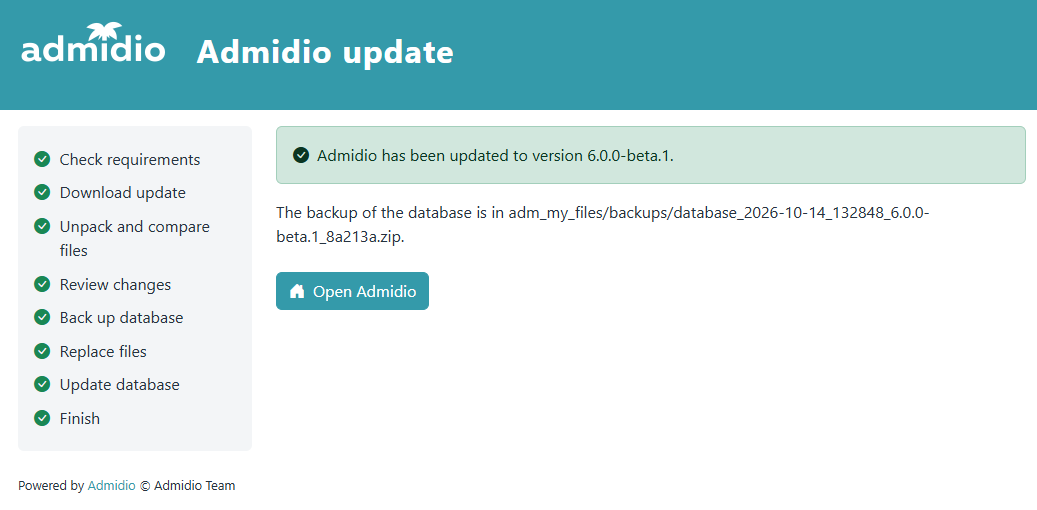
If there are warnings or problems, the final page says so clearly, with the locations of the backups and notes for you to act on.
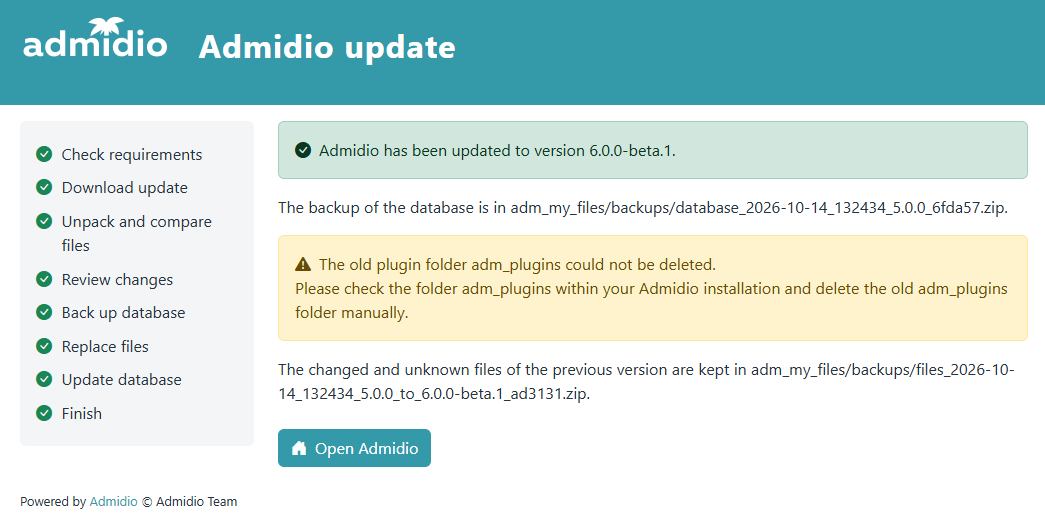
The backups stay on your server until you delete them. You can download and delete them in Preferences → System → Update & backup (see Backups).
What the update does with your files
| What | What happens |
|---|---|
adm_my_files (uploads, photos, documents, logs, templates), config.php | Never touched. The updater only adds its own backups, logs and a temporary work folder there. |
custom_css.css, custom_logo.png, custom_favicon.png, .htaccess, robots.txt | Never touched. |
The program files of Admidio (folders src, modules, system, languages, libs, rss, vendor, install, the standard theme themes/simple, the plugins that come with Admidio, and the files in the main folder such as index.php) | Replaced by the new version. Files the new version no longer has are removed. |
Plugins and themes you added yourself (plugins/<name>, themes/<name>) | Not touched. |
| Core files that you changed, and files that do not belong to Admidio but lie in its program folders | Replaced or removed like the others, but first saved in the archive of replaced files. |
The archive of replaced files is a ZIP file adm_my_files/backups/files_<date>_<time>_<from version>_to_<to version>_<code>.zip. It contains every file that was changed, unknown or removed, with its full path, and a list meta.json. It is never deleted automatically, and you can download or delete it in the preferences. A ZIP file cannot be run, so a suspicious file in it does no harm.
Before a single file is replaced, the updater copies it to a safe place, and it writes a journal of every step. That is what makes it possible to put the previous version back.
Backups
The backups are in the folder adm_my_files/backups. You manage them in Preferences → System → Update & backup:
- Back up the database now makes the same kind of backup as the updater does, whenever you want one.
- The list Backups shows all backups and archives of replaced files with type, date and size, and lets you download or delete each of them. Nothing is deleted automatically: remember to clean up now and then, the files contain all your data.
What a database backup is
A ZIP file database_<date>_<time>_<version>_<code>.zip. It contains one file per table (001_adm_….sql.gz and so on) with the structure and the data. For PostgreSQL it contains one file made with pg_dump.
Protect it with a password
A backup contains your members' data. You can encrypt every backup with a password (AES-256):
- In Preferences → System → Update & backup, field Password for the database backups of updates. The password is stored in the database and never shown again; leave the field empty to keep it, tick Remove the stored password to delete it.
- Or, safer, in
adm_my_files/config.php:
$gCoreUpdateDumpPassword = 'a long secret password';
A password in config.php takes precedence over the one in the preferences. Keep it safe: without the password a backup cannot be restored. If your server cannot encrypt ZIP files, the updater warns you and makes the backup without encryption.
To open an encrypted ZIP file you need a program that supports AES encryption, for example 7-Zip or WinZip. The built-in ZIP functions of Windows and macOS cannot do it.
Restoring a backup by hand
The updater restores its own backups for you if an update fails (see If something goes wrong). To restore a backup by hand, unpack the ZIP, then import the files into the database in the order of their names, for example with phpMyAdmin or
gunzip -c 001_adm_announcements.sql.gz | mysql -u USER -p DATABASE
Each file replaces its table (it starts with DROP TABLE). A backup of a PostgreSQL database holds a single file that you restore with
gunzip -c DATABASE.sql.gz | psql -U USER DATABASE
If something goes wrong
First: do not panic. Before the update changes anything, the updater keeps the previous files and a backup of the database. The page always shows the possible next steps under What should I do?
The browser was closed or the connection broke
Open the updater address again (…/install/core-update/index.php in your Admidio folder). While Admidio is in maintenance mode you cannot use the normal login, so the updater has a login of its own:
- The browser that started the update can continue without a login.
- Any other browser or computer: log in with the login name, password and, if you use two-factor authentication, the security code of an administrator. After five wrong logins the login is blocked for 15 minutes.
The page then shows where the update stands and continues from there, or shows the buttons for the situation: an error while the files are installed or the database update failed.
An error while the files are installed
Typical cause: file permissions. The page says “The file … could not be installed. Check the file permissions on the server.” and offers:
- Continue the update, once you have fixed the cause. It continues with the file at which it stopped.
- Restore version X: all previous files are put back. The database has not been changed yet, so Admidio works as before.
The database update failed
The files are new and the database is half updated. Admidio stays in maintenance mode, and the page names the error and offers
- Retry the database update, once the cause is fixed (for example with help from the Admidio forum). It continues with the step that failed.
- Restore version X (recommended): the database is restored from the backup that was made before the update, then the files. Admidio works exactly as before, and you can try the update again later.
- Restore version X and look for a corrected release: the same, but a new update starts at once. If a fixed release has been published in the meantime, it is offered.
If you chose “I have my own current backup” and the updater has no backup, you must first restore the database from your backup yourself (see Restoring a backup by hand) and tick I have restored the database from my own backup. Only then are the files restored.
When the database update “has not reported back”, it may still be running. Wait a few minutes and reload the page before you retry it.
Last resort
If the updater itself does not open and your site shows the maintenance page for hours, you can switch maintenance mode off by deleting the file adm_my_files/maintenance.json. Only do this when you are sure no update is running, and check afterwards whether Admidio works: an interrupted update leaves a mixture of old and new files.
Reporting a problem
The log of every update is in adm_my_files/logs/core-update_<date>_<from>_to_<to>.log and the page shows Error details for a bug report. Please add both to your report in the Admidio forum, together with your PHP version and your hosting provider.
Using the command line
If you have shell access (SSH), you can run the same update without a browser. The commands do exactly what the pages do (see The update step by step) and ask the same two questions: before the download and before the installation. Run them as the user that owns the Admidio files; if you use another user, the new files belong to that user and later updates in the browser may fail. The PHP of the command line may be a different version than the one of your web server: check it with php -v.
There are two ways to start the update:
| Updater script | admidio utility |
|
|---|---|---|
| Command | php install/core-update/cli.php apply | ./admidio update:apply |
| Available in | every installation that contains the updater, including 4.x and 5.0 after you added it | Admidio 6.0 and later |
| Works while Admidio cannot start (unfinished update, maintenance mode) | Yes | No |
| Needs | nothing else | the command line enabled in config.php and an administrator (–as) |
The updater script
Go to the main folder of your Admidio installation and run:
cd /path/to/admidio
php install/core-update/cli.php apply
Other commands of the script:
php install/core-update/cli.php status          # is an update unfinished, and in which state?
php install/core-update/cli.php rollback        # undo the unfinished update (asks first; --yes to confirm)
If an update stops half way and Admidio no longer starts (see If something goes wrong), use this script: apply –resume continues the update, rollback undoes it.
The admidio utility
The utility admidio in the main folder is the command line of Admidio 6.x. It starts the same updater in a process of its own, because the update replaces the program files that the utility itself has loaded. Two things are needed first:
- The command line is switched off by default. Enable it in
adm_my_files/config.php:
$gCliEnabled = true;
- Commands that change something act in the name of an Admidio administrator. Name the account with
–as(login name, ID or UUID). The utility does not ask for a password: whoever can run it on the server is trusted. Instead of repeating–asyou can set the account once inconfig.phpas$gCliDefaults = array('as' ⇒ 'admin');.
cd /path/to/admidio
./admidio update:check                      # is there a newer release? (exit code 4 = yes)
./admidio update:apply --as=admin           # check, download, install, update the database
./admidio update:apply --as=admin --dry-run # rehearsal: check and plan only
./admidio update:rollback --as=admin        # undo the unfinished update
If the file is not executable on your system, put php in front: php admidio update:check. update:check only tells you whether a new version exists. A cron job with ./admidio maintenance:run –job=update-check keeps the update notice in the preferences up to date.
If an update stops and Admidio cannot start any more, the utility cannot help; continue with the updater script (php install/core-update/cli.php apply –resume).
Options
The options are the same for the updater script and for update:apply of the utility:
| Option | Meaning |
|---|---|
–yes | Answer both questions with “yes” (for scripts). Without a terminal the update stops before it changes anything. |
–dry-run | Check and plan only, then cancel. Nothing is installed. A good rehearsal. |
–backup=dump or –backup=own | The updater backs up the database (default where possible), or you confirm an own backup. |
–on-changed=cancel | Cancel the update if files that you changed (or unknown files) would be replaced. The default (archive) is to archive and replace them. |
–skip-database | Install the files only; maintenance mode stays on until you run apply –resume (or install/update.php). |
–resume | Continue the unfinished update, also to retry a failed database update. |
–dump-password-env=NAME | The password for the backup is in the environment variable NAME. It is never given on the command line itself. |
–format=json | Machine-readable result. |
–channel=…, –ref=… | Only with debug mode: install a development version (beta, master, a branch, a tag or a pull request). |
For rollback (and update:rollback): it cancels an update that has not changed anything, puts the previous files back until the database update has started, and after a failed database update restores the previous version with the backup of the updater. If the updater has no backup, restore your own database backup first (see Restoring a backup by hand) and add –database-restored.
The exit code tells scripts what happened: 0 = done, 1 = error, 2 = wrong options, 5 = refused (for example a failed requirement check), 6 = the update could not be completed. (update:check returns 4 if an update is available.)
Questions and answers
Does Admidio update itself automatically?
No. It only looks for a new version and tells the administrators. An administrator has to start every update.
Can I go back to the old version afterwards?
Until the database update has started, the updater can put back the previous files (button or rollback, see Using the command line). After a failed database update it can restore the database and the files. After a successful update there is no “undo”: restore the backup of your own, or the database backup of the updater together with the old files.
How long does an update take?
On a good server less than a minute; on shared hosting usually a few minutes. The database update of a very old installation (4.x) takes longer.
Is the download safe?
The announcement of a new release is digitally signed by the Admidio team and contains the checksum of the package. The updater downloads over HTTPS only, checks the signature and the checksum, and checks every file again after the installation. A release that fails any check is not installed.
Why does the updater say “Automatic updates are not available for this installation”?
The release that is announced has no package for the updater yet, or your version is older than 4.0. Download the release from the Admidio website and update by hand, as described in its documentation (see “Can I still update by hand?” below).
Do I need the updater package for every update?
No, only once for an installation older than 6.0 (see Add the updater for Admidio 4.x and 5.0). From 6.0 on the updater is part of Admidio and updates itself with every release.
Can I still update by hand?
Yes. Uploading the files of a release and opening install/update.php works as before. The updater is a convenience, not a requirement.
Can I update to a beta or a development version?
The updater offers only stable releases. Other versions are for testers who switch on debug mode in config.php; do not use them on a live site.
Where do I find the old archives and backups?
In Preferences → System → Update & backup, in the list of backups (see Backups), and in the folder adm_my_files/backups.